Connect WriteAlt to a Bubble image workflow
Start with a single image. Configure the uploader or image record, save the generation job, and connect the finished description to the image element.
1. Install the plugin and connect your account
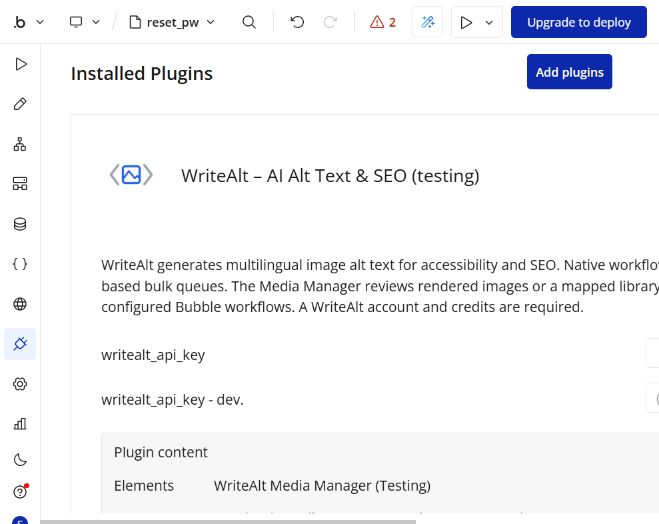
Install the free plugin from the Bubble marketplace. In Bubble Editor -> Plugins -> WriteAlt, enter your WriteAlt API key in the private writealt_api_key setting. Use the separate development value for testing.
- Get your key from the WriteAlt dashboard API settings and confirm the account has generation credits.
- Keep the key in plugin settings rather than exposing it in a page or public database field.
2. Connect an upload or image record
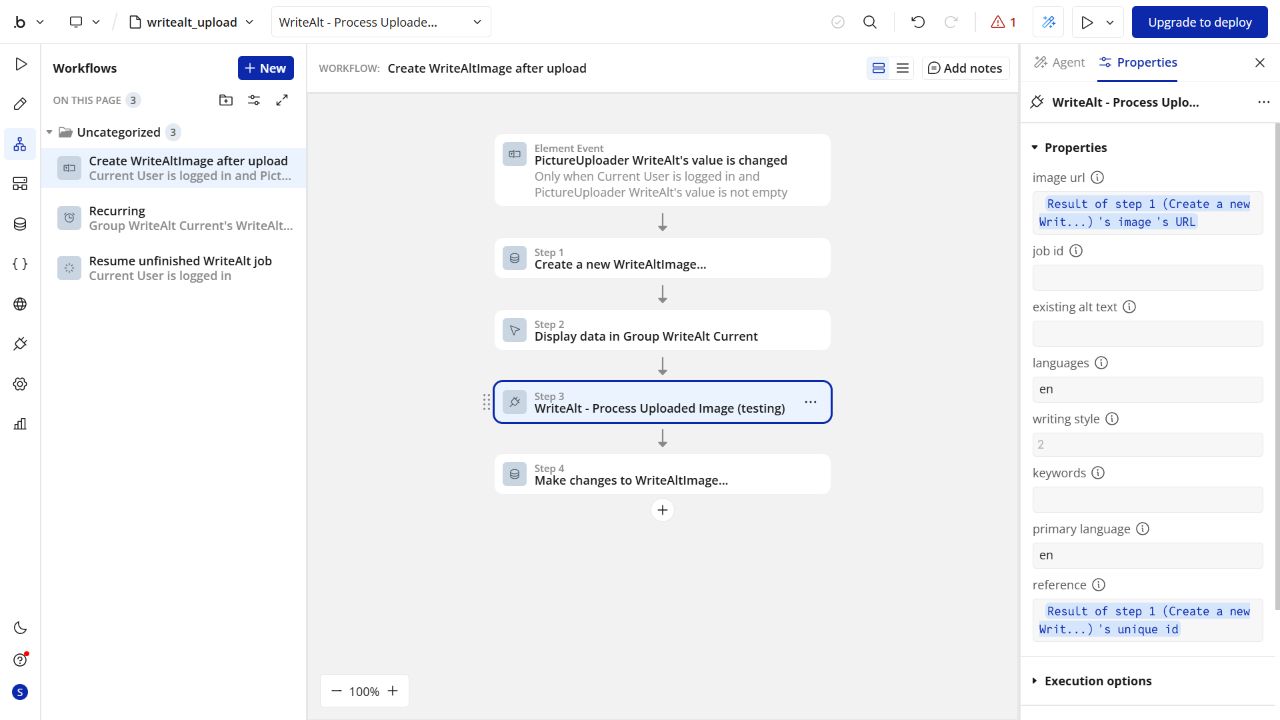
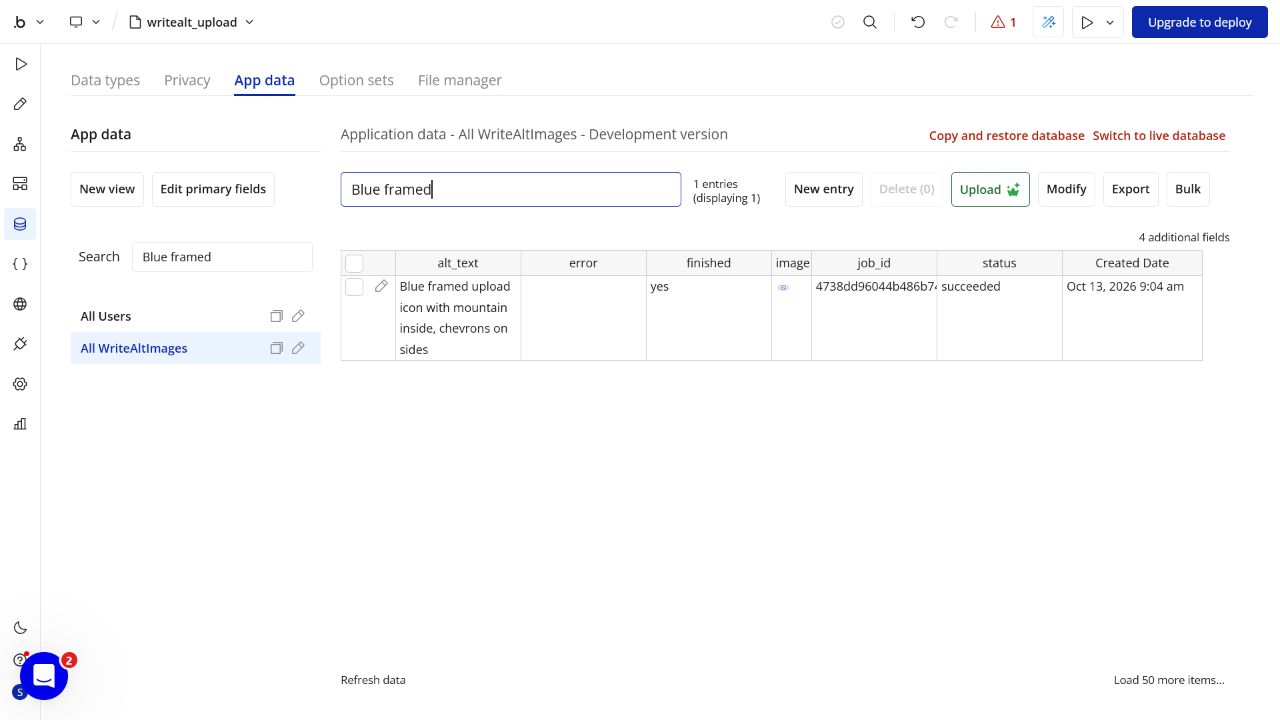
Create an image-bearing database record with fields for the image, alt_text, and writealt_job_id. Connect the uploader value-changed event, or a workflow for an existing record, to the image URL you want to describe.
- Supply the image direct, accessible URL to Process Uploaded Image or Start Alt Text Generation.
- For a new generation, start with an empty Job ID. Choose languages, writing style, and optional context.
- Images must be reachable by WriteAlt. A local path, CSV download link, or Google Sheet link is not an image URL.
3. Save the Job ID and check the same job
Save the returned job_id immediately on the original image record. Schedule a paced check of that same saved Job ID until the response indicates that the alt text is ready.
- With Process Uploaded Image, check the same saved job until ok and ready are yes.
- Keep the image and Job ID together so the finished result updates the correct record.
- Preserve existing descriptions. Do not automatically resubmit a pending or ambiguous job; check its saved ID first.
4. Save the description and bind the ALT tag
When generation finishes, save the returned alt_text to your Bubble image record. In the image element settings, bind the ALT tag to that saved field.
- Review the description in the context where the image appears.
- Confirm that the database record is updated and the displayed image uses the saved ALT value.
- Installation alone does not save descriptions or update image elements. Your Bubble workflow performs those steps.
5. Build a paced bulk workflow
Map image records with Prepare Image List, or provide CSV contents to Parse Image CSV. Submit small batches, save their Job IDs, and retrieve the results before marking records complete.
- For database images, configure a private backend workflow for one record and schedule it on a filtered list of records missing alt text, with an interval to pace requests.
- Each app builder maps the relevant image data types and save workflows. The plugin does not discover unrelated database types, static images, or unlinked File Manager uploads.
- A CSV or Google Sheet link is not processed directly. Supply parsed or mapped data through the configured workflow.
- The single-image generation and saved ALT tag have been live-tested. Bulk actions have automated tests, but the full bulk flow has not yet been live-tested in a Bubble app. Test a small collection before expanding.
6. Add the optional Media Manager
Place the Media Manager in an app page to review rendered images or an explicitly mapped database library. Connect its save requests to the appropriate Bubble workflows.
- The Media Manager is an app-page component, not a right-click command or extension for the Bubble design editor.
- Limit the mapped records to images the current user is allowed to view and update.
- WriteAlt credits and Bubble workload usage apply to the workflows you configure.
Install, map your images, save the Job ID, check the same job, and bind the saved description to ALT. Bulk processing requires a configured, paced workflow; it does not happen automatically after installation.








 Native Bubble actions for image alt text