








1. Choose what starts the Zap
Create a Zap and choose a trigger, such as a new Google Sheets row. Your test record should include a direct image URL.
Website integrations
WordPress Shopify WooCommerce Wix Squarespace Framer DatoCMS Craft CMS Drupal Joomla Emdash HubSpot CMS Bubble ContentfulCloud integrations
Pinterest Google Drive DropboxDesktop apps
Windows LinuxBrowser extensions
Chrome Extension Firefox Add-on Edge ExtensionDeveloper tools
Visual Studio Code API MCP ServerAutomation
ZapierTurn image URLs from Google Sheets and other apps into useful alt text with WriteAlt for Zapier. Choose your language, generate a description, and save it where you need it.
Available on Zapier. You need a WriteAlt API key and credits. Zapier task usage is billed separately.
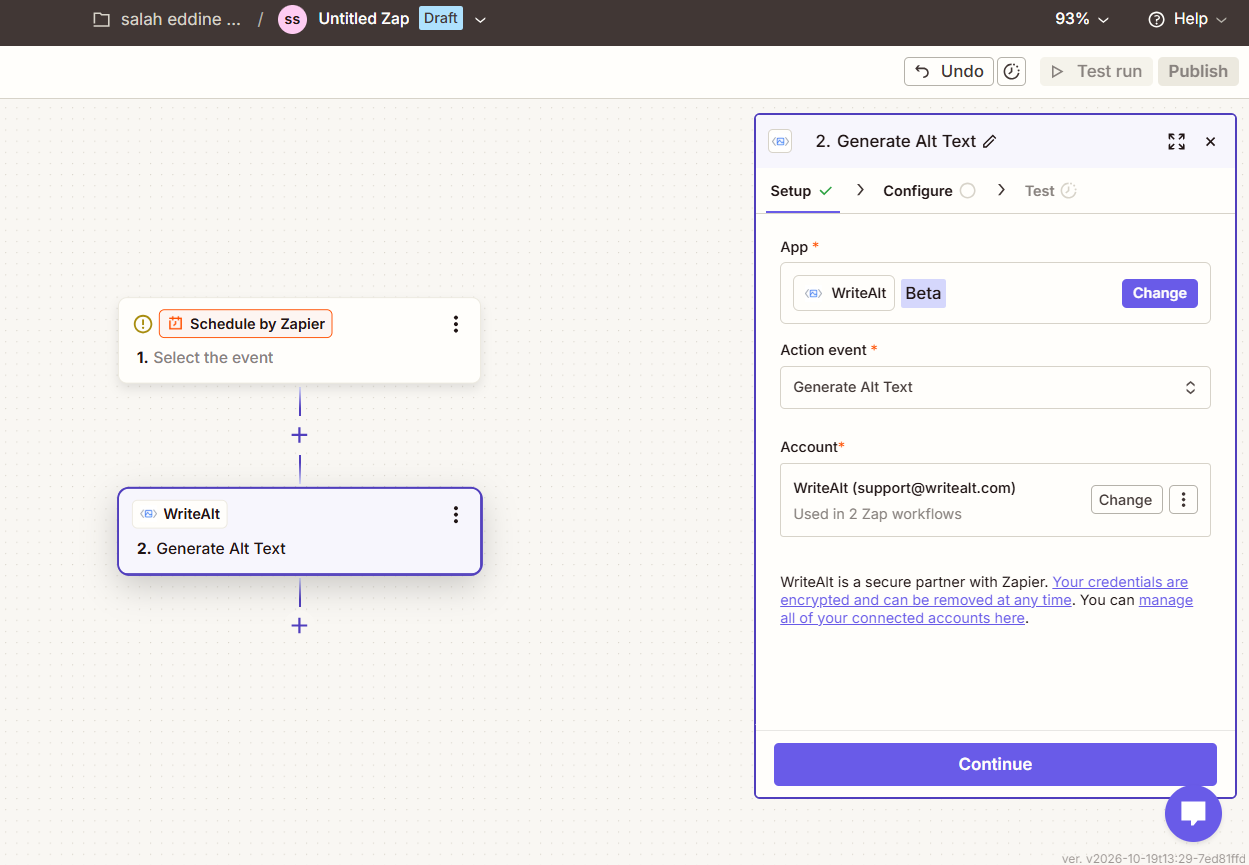
Start with one image and test the full workflow before turning it on.
Create a Zap and choose a trigger, such as a new Google Sheets row. Your test record should include a direct image URL.
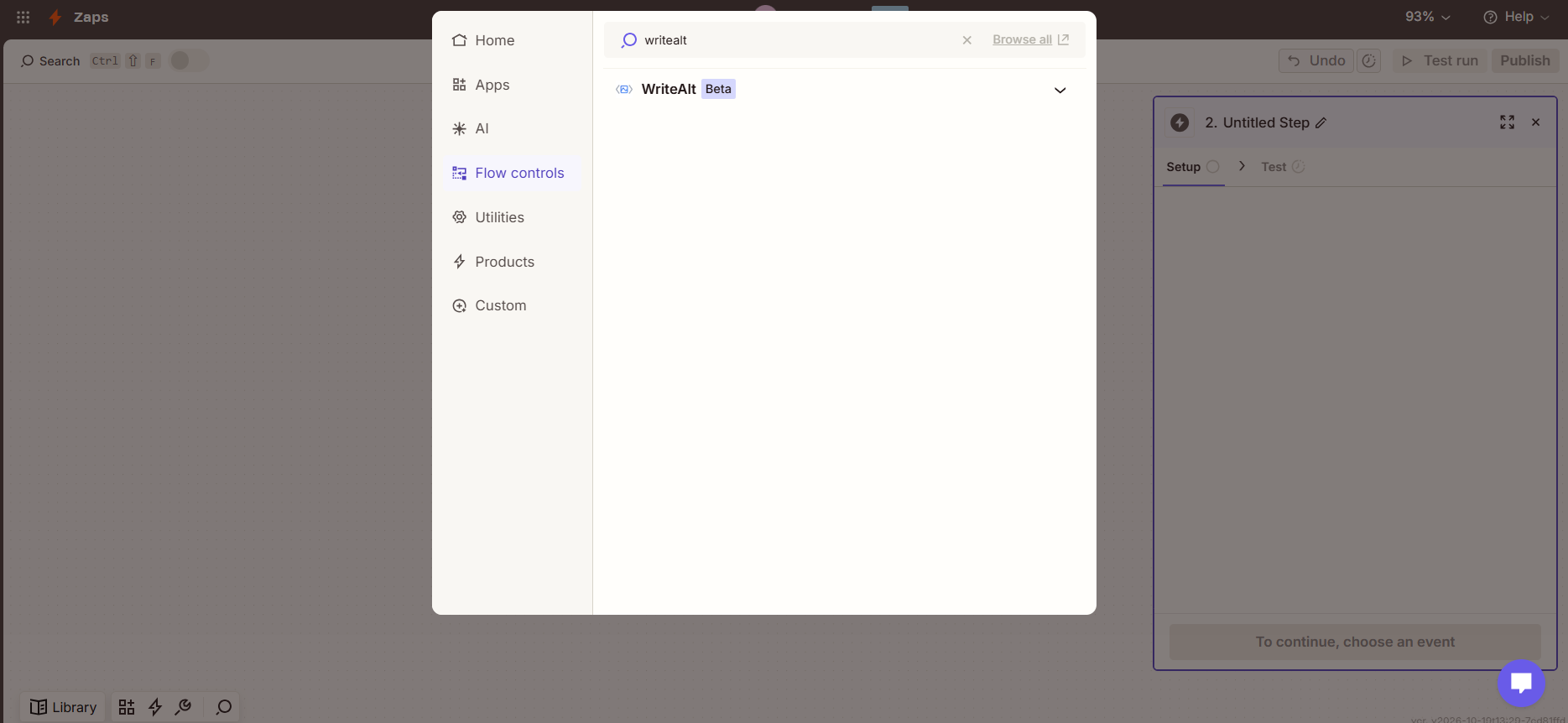
Search for WriteAlt, choose Generate Alt Text, and connect with your API key from WriteAlt dashboard -> Settings -> API.
Use the field picker to select the image URL from your trigger. Choose language codes such as en or en,es, then select a writing style. Keywords or context are optional.
Test the action and review Generated alt text. Add a step to save it to the matching row or record. Publish the Zap and check a completed run in Zap History.
A new record brings the image URL. WriteAlt creates the description. Your next step saves it.
Use an image URL from a spreadsheet row, a database record, or another step in your Zap.
Select the image URL from your current record. Each new run uses the image from that record.
Use one language or request up to 10 supported language codes, such as en,es.
Choose Professional, Recommended, Shorter, Comprehensive, or Briefest. Add optional image context or keywords.
Send Generated alt text to a spreadsheet, database, or CMS step and match it to the original record.
Add a save step to store alt text and an optional completion status in your Sheet, Table, or destination app. You configure this tracking.
Bulk means repeating the workflow for many rows. Each WriteAlt action takes one image URL, not a whole CSV or spreadsheet. In this setup, each row starts its own Zap run.
Use columns image_url, alt_text, and Send to Zapier. Choose Google Sheets -> New or Updated Spreadsheet Row, with Send to Zapier as the Trigger Column.
Add WriteAlt -> Generate Alt Text. Use the field picker to select the row's image_url as Image URL, then choose your languages and style.
Add Google Sheets -> Update Spreadsheet Row. Select the row ID from the trigger and save Generated Alt Text into alt_text. Watching Send to Zapier, not alt_text, keeps this save from restarting generation.
Publish and fill Send to Zapier for two rows without alt text. Check the saved results, then release more gradually. Zapier recommends no more than 100 rows every 20 minutes to reduce throttling.
Find the app, choose Generate Alt Text, and connect your WriteAlt account.
Here are the details most teams check before getting started.
A Zapier account, a WriteAlt API key with available credits, and a public image URL. Some Zapier workflows require a paid plan.
Yes. Import the CSV into Google Sheets and follow the row-by-row example above. WriteAlt does not accept the whole CSV as one input. Existing rows need to be sent into the Zap; importing alone does not process them.
Import your CSV, select the imported records, choose Automate records, select your Zap workflows, and click Send to Zap workflows. Importing records alone does not trigger a New Record Zap. Add a destination step to save each result to its matching record.
Each WriteAlt action takes one image URL. If your source supplies a list, use Looping by Zapier to repeat the action for each URL and keep its record ID with it. A loop is a separate WriteAlt action execution per image, not one bulk request.
No. You set up that tracking in your Sheet, Table, or destination app. Add a final Zap step to save the alt text and, optionally, mark the record complete. Use a filter to skip completed records if needed.
Generated alt text is the main description. Alt text by language (JSON) contains the returned language versions. The image URL and, when available, image ID and remaining credits are also returned.
Request up to 10 supported language codes per image. Each image per language uses one WriteAlt credit: 1,000 images in one language use 1,000 credits; two languages use 2,000. Budget separately for Zapier tasks, including generation and the save step where applicable to your plan.
Not automatically. Results are saved only where you configure the destination step. Saving to a spreadsheet does not update a website; connect your CMS and make sure it uses the saved text as the image alt attribute. The action does not scan sites or optimize image files.
Check the completed action in Zap History; a job ID alone does not mean the description is ready. Check image access, your API key, and credits if generation fails. If only saving failed, recover the generated result where possible, since generating again can use more credits.
Connect WriteAlt to your apps, test a few images, and save useful alt text alongside your content.