









Browse Dropbox folders
Connect Dropbox and open the folder that contains the images for your project.
Website integrations
WordPress Shopify WooCommerce Wix Squarespace Framer DatoCMS Craft CMS Drupal Joomla Emdash HubSpot CMS Bubble ContentfulCloud integrations
Pinterest Google Drive DropboxDesktop apps
Windows LinuxBrowser extensions
Chrome Extension Firefox Add-on Edge ExtensionDeveloper tools
Visual Studio Code API MCP ServerAutomation
Zapier n8nImport selected images from Dropbox into WriteAlt, create alt text, organize files, and export a CSV when the work is done.
A WriteAlt account and API key are required for AI generation.
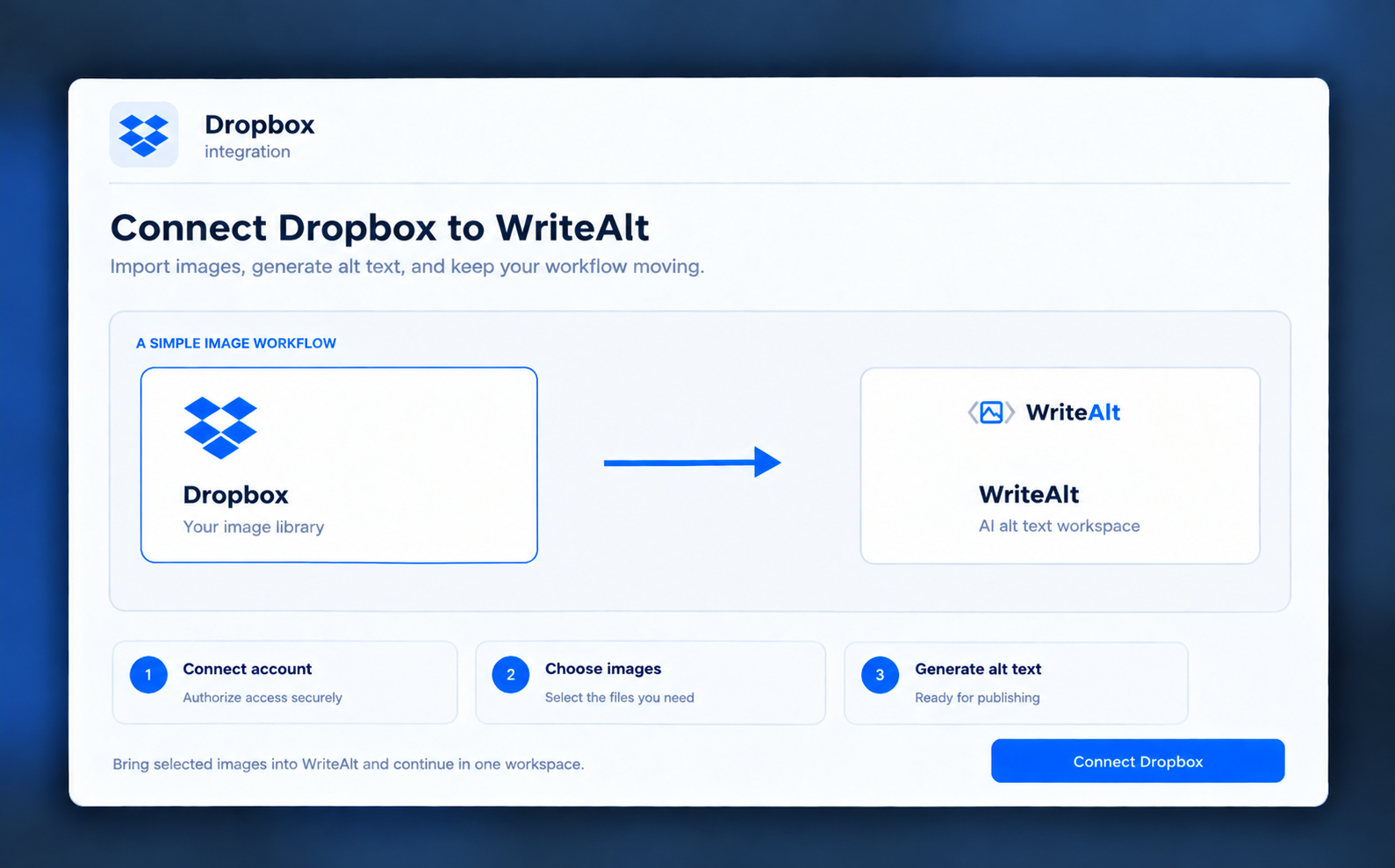
Open Import Images in the dashboard, connect Dropbox, and choose the files for this project.
Connect Dropbox and open the folder that contains the images for your project.
Choose individual images or select the whole visible batch.
Continue in Images and choose the language, style, and keywords for the results.
Move imported files into WriteAlt folders so each project stays easy to manage.
Compress or convert supported images before using them somewhere else.
Keep the results in History and download the finished alt text as a CSV.
Leave the source folder intact and work only with the files you select.
Sign in to the WriteAlt dashboard and open the image import dialog.
Choose Dropbox and authorize access to the folders you want to browse.
Choose the files, then bring them into your WriteAlt image workspace.
Create alt text, make any file changes you need, and export the records.
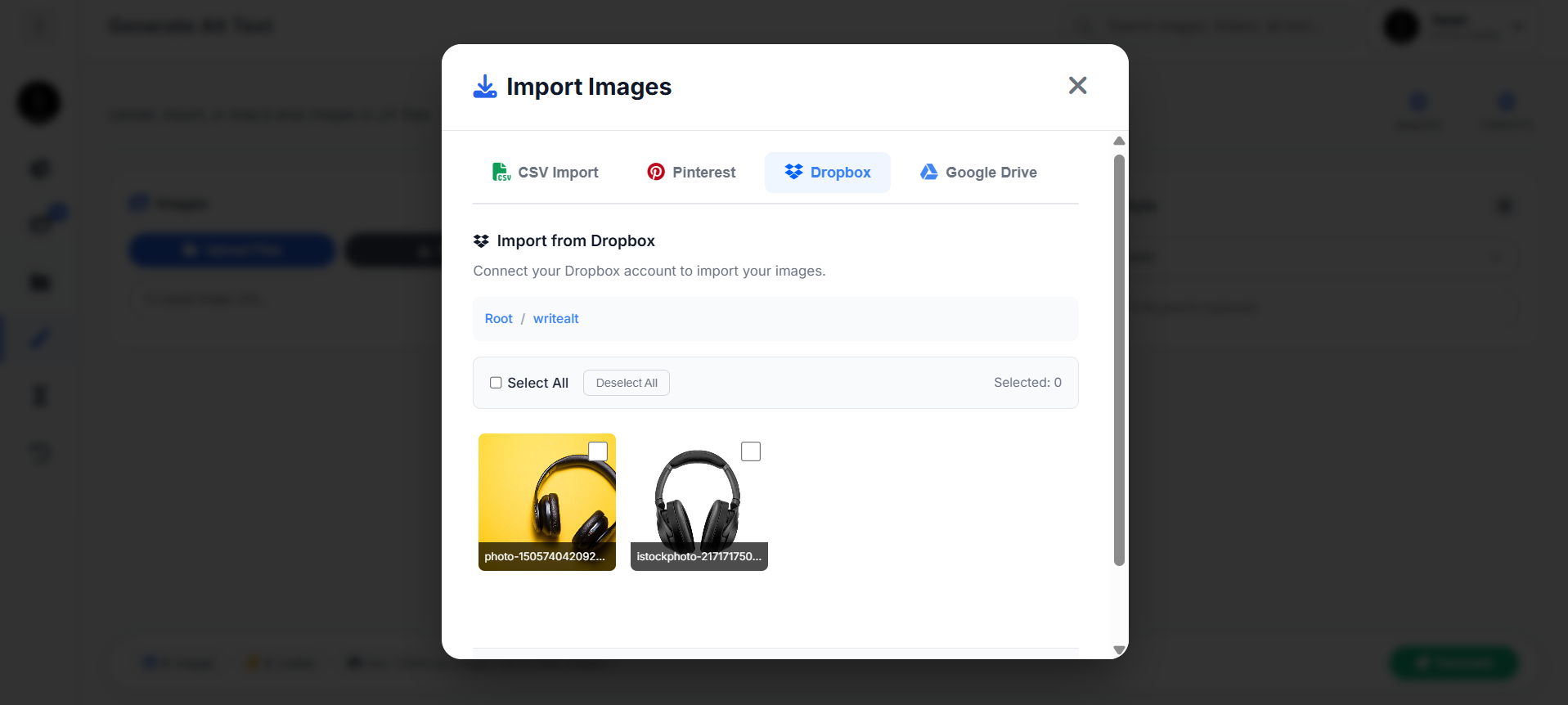
This dashboard view shows the Dropbox folder path and the images selected for import.
Here are the details most teams check before getting started.
Sign in to the WriteAlt dashboard, open Import Images, and choose the Dropbox tab.
Yes. Browse the current Dropbox path and select the image files you want to import.
Generate alt text, organize the files, optimize supported images, and export the completed records.
Generate alt text, improve image SEO, and keep your existing workflow moving.