









From your dashboard to your Media Library
Export images to WordPress with alt text
Upload once in WriteAlt. Generate alt text, create SEO filenames, compress your images, and convert them to WebP. Then import the prepared batch into WordPress with one XML file.
- Generated alt text
- SEO filenames
- Compressed WebP
- Protected export links
STEP 01 / WRITEALT DASHBOARD
Upload your images in WriteAlt
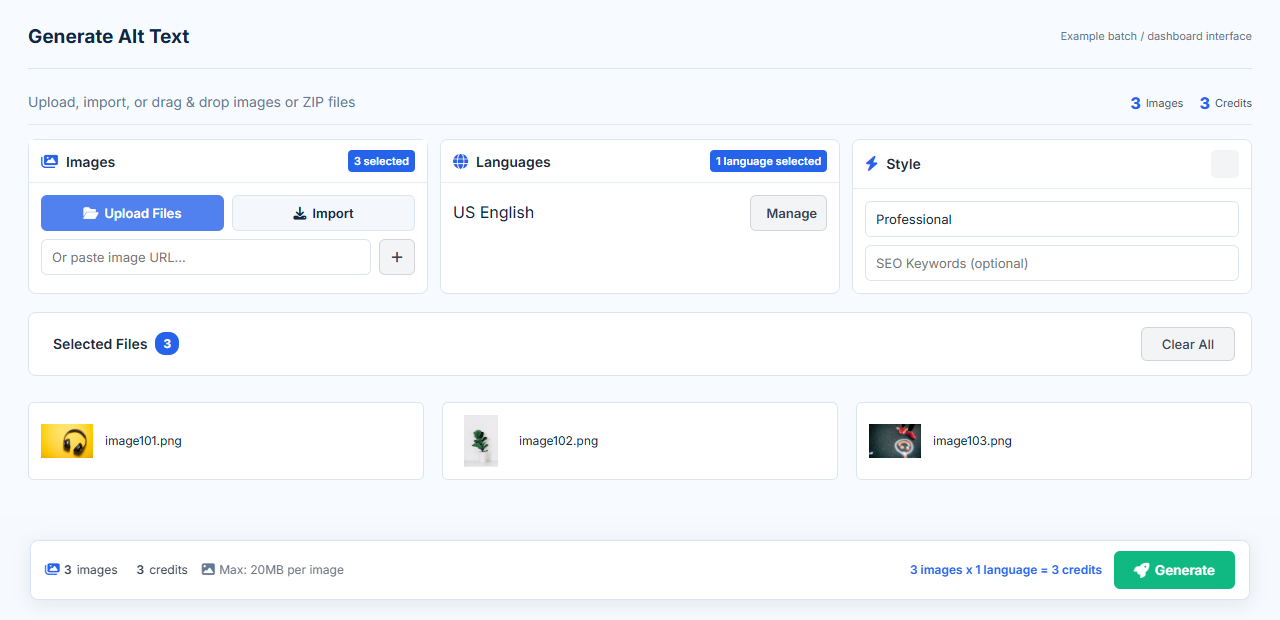
Sign in to WriteAlt and open Generate Alt Text. Use Upload Files, drag in your images, or use an available import source. This walkthrough uses a batch of three images.
Choose the language and writing style you want. The preparation happens in your dashboard, not in WordPress.
STEP 02 / GENERATE AND OPTIMIZE
Generate alt text and prepare the finished images
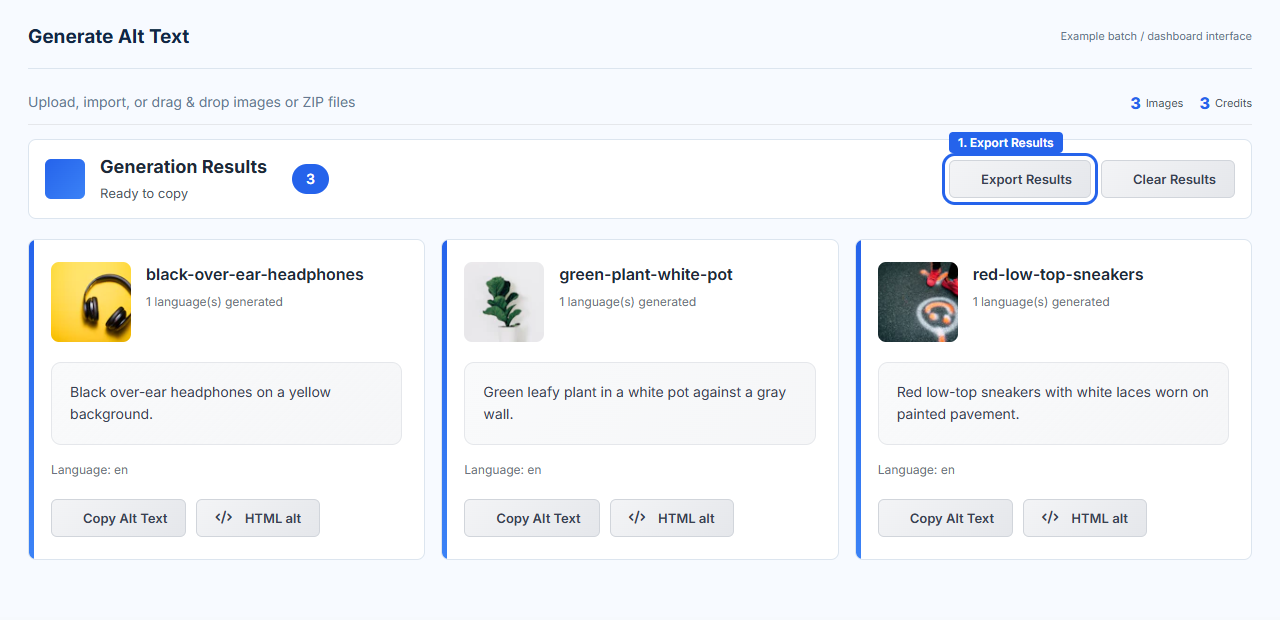
Click Generate and wait for the batch to finish. WriteAlt handles alt text, SEO filenames, compression, and WebP conversion in the dashboard workflow.
Review each description and the prepared files before continuing. When your results are ready, click the highlighted Export Results button.
The WordPress XML carries your attachment information and generated alt text. WordPress downloads the image versions already prepared in WriteAlt; importing the XML does not itself compress or convert files.
STEP 03 / EXPORT YOUR BATCH
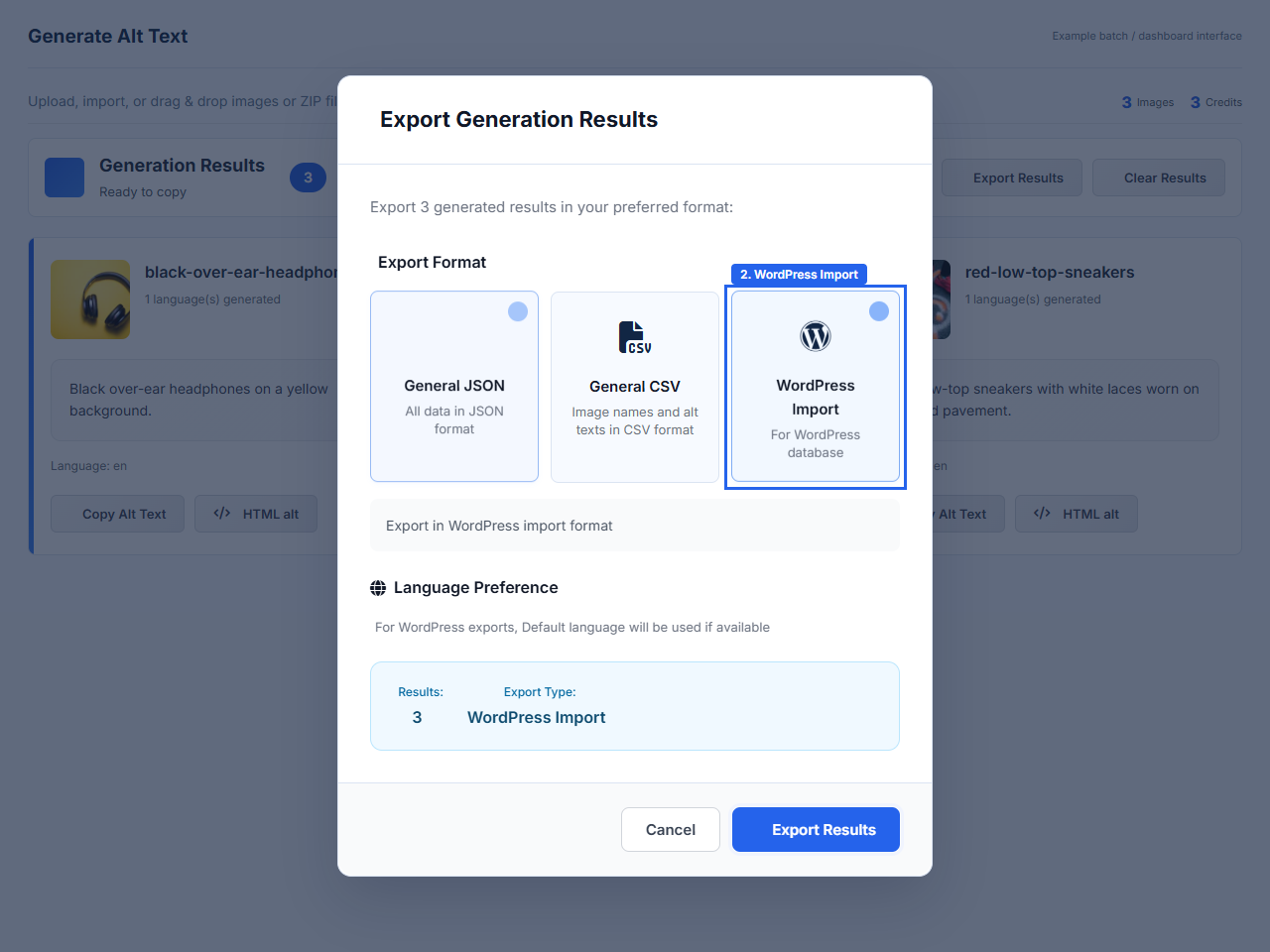
Choose WordPress Import and download the XML
In the export modal, select WordPress Import, then click Export Results. Save the downloaded .xml file. It describes the images and their alt text, and includes protected links that WordPress uses to retrieve the actual files.
The same WordPress export format is available from your image selection, folder, batch, and history export dialogs. For multilingual images, the default language is used when available.
Protected links, not permanent public source URLs
Import before your export expires. Each image link can be downloaded up to two times while valid. Opening a protected image URL, previewing it in another tool, or retrying an import may use that allowance, so do not treat it as two guaranteed full imports.
If a link expires or reaches its download limit, return to the dashboard, create a new export, and import its new XML. Reusing the old XML will still point to the old links.
The XML contains access links and may contain author information. Share it only with the people or site that need it. Once WordPress has downloaded an image, its local copy does not expire after 28 days; your WordPress site controls that copy and its public visibility.
STEP 04 / WORDPRESS ADMIN
Open Tools > Import in WordPress
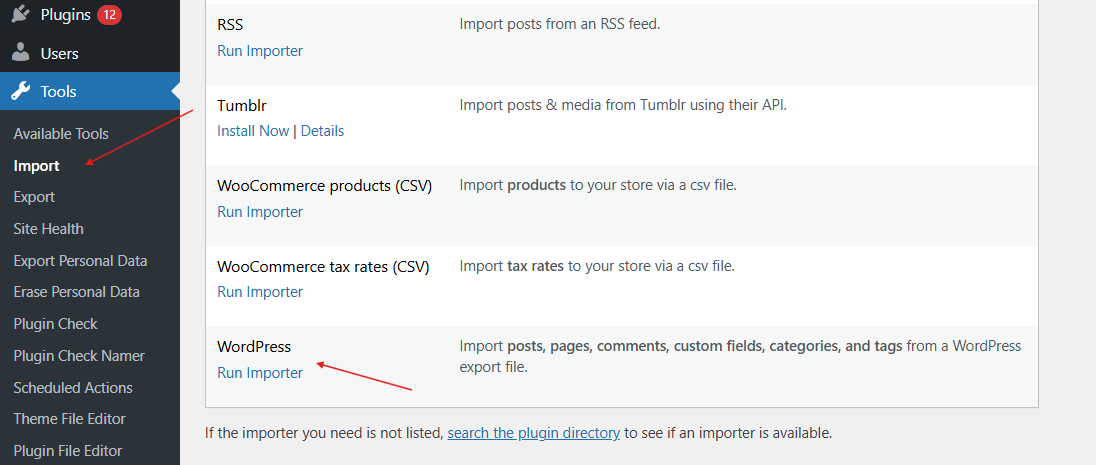
In your WordPress administration area, open Tools > Import. Find WordPress and click Run Importer. If it is not installed, click Install Now first.
Use the WordPress importer, not the WooCommerce products CSV importer. You do not need to connect your site to WriteAlt or provide your WordPress password.
STEP 05 / SELECT YOUR EXPORT
Upload the XML you downloaded from WriteAlt
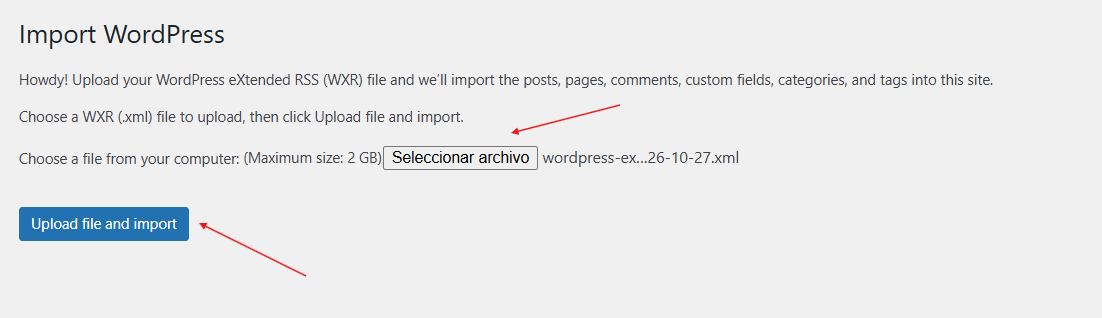
Click Choose File, select your WriteAlt WordPress .xml export, and click Upload file and import. Depending on your browser language, Choose File may have a translated label.
STEP 06 / DOWNLOAD THE IMAGES
Assign an author and import the attachments
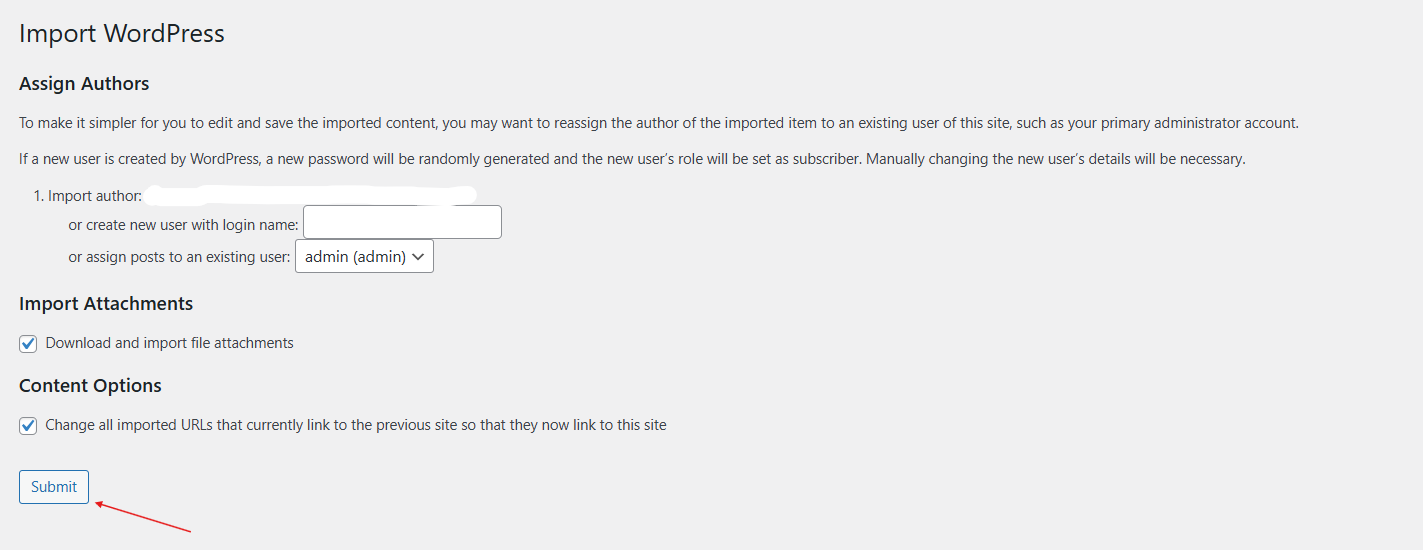
Assign the imported attachments to an existing WordPress user if appropriate. Under Import Attachments, select Download and import file attachments, then click Submit.
This is what tells WordPress to fetch the actual image files from the protected URLs. Your WordPress server must be able to reach those links. Review any other importer options according to your site; they are separate from downloading the attachments.
STEP 07 / READY TO USE
Check the images in your Media Library
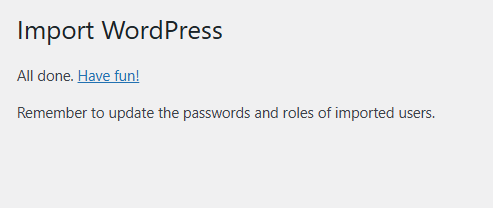
Wait for WordPress to finish. When the importer reports All done, open Media > Library and review the imported images. Open an attachment and check its Alternative Text field, filename, and file type.
The prepared WebP files and their generated alt text are now available for use in your posts, pages, and products. The XML import adds media attachments; it does not automatically place them into your content.
Common questions
Do I need to connect my WordPress site to WriteAlt?
No. Prepare your images in the WriteAlt dashboard, export the WordPress XML file, and import it through Tools > Import in WordPress. You do not need to share your WordPress password with WriteAlt.
Where do alt text, SEO filenames, compression, and WebP conversion happen?
They happen in the WriteAlt dashboard before you export. The XML contains attachment records, generated alt text, and protected links to the prepared images. The WordPress importer downloads those images; it does not perform the WriteAlt optimization steps. Review successful results and the prepared image files before exporting.
Why is the XML file much smaller than my image batch?
The XML describes the attachments and their metadata. It references your images through protected links instead of embedding all the image bytes. WordPress downloads the image files when you select Download and import file attachments.
Can I import the same image link twice?
Each protected image link allows up to two image downloads within 28 days of export creation. That is a download allowance, not a guarantee of two complete imports: previews, retries, or other tools fetching the image can consume the allowance. Create a fresh export and use its new XML if links expire or reach their limit.
Will images already imported into WordPress expire after 28 days?
No. The expiry applies to the temporary WriteAlt source links, not the image copies that WordPress has already downloaded into its Media Library. Your WordPress site manages those copies and their visibility.
Will the import add the images to my posts or products automatically?
The image export creates Media Library attachments with their alt text. You can then select those images in your pages, posts, or products. It does not automatically choose where each image should appear.
Your next batch starts in WriteAlt.
Generate, optimize, export, then import into WordPress.
WordPress reference: Importing content with the WordPress importer. Looking for generation inside WordPress instead? Explore the WriteAlt WordPress plugin.