

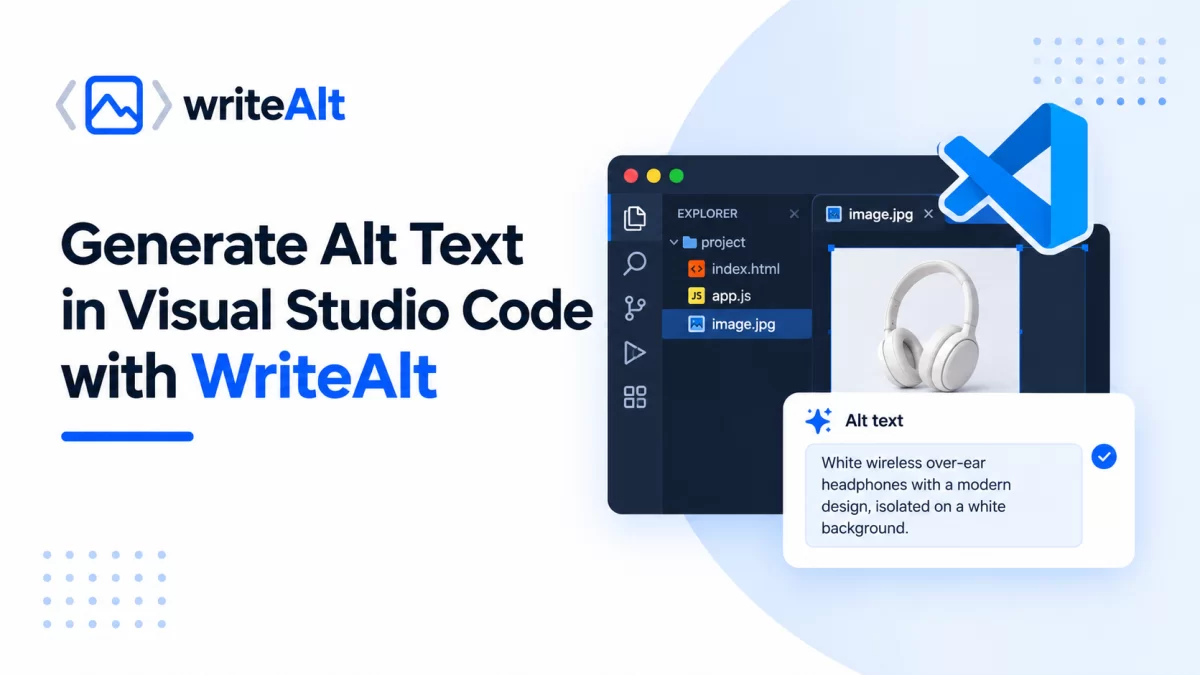
Generate Alt Text in Visual Studio Code with WriteAlt
WriteAlt helps developers create useful, descriptive alt text without leaving Visual Studio Code. The extension works directly with HTML files and image references, making it easy to improve accessibility while building websites.
Install WriteAlt from the Marketplace
Open the WriteAlt extension page on the Visual Studio Code Marketplace and select Install.
You can also install it directly from Visual Studio Code:
Open the Extensions panel.
Search for WriteAlt.
Select WriteAlt – AI Alt Text & SEO.
Click Install.
Connect your WriteAlt account
After installation, open the Command Palette by pressing Ctrl+Shift+P.
Search for:
WriteAlt: Configure API Key
Enter your WriteAlt API key. The key is stored securely in Visual Studio Code. After it is verified, the WriteAlt status bar displays the connection status and remaining credits.
Each user should use their own WriteAlt API key and account so usage and credits remain connected to the correct account.
Choose a language and writing style
Open Visual Studio Code settings and search for WriteAlt. The extension provides a language dropdown with 138 supported languages, including English, Spanish, French, German, Arabic, Portuguese, Italian, Dutch, Japanese, Chinese, and many others.
You can also select a generation style:
Professional: factual business tone
Recommended: balanced and descriptive
Shorter: concise essential details
Comprehensive: detailed descriptions
Briefest: one short sentence
Optional SEO keywords can be added to guide the generated description.
Generate alt text inside an HTML file
Create or open an HTML file containing an image:
<img src="https://images.unsplash.com/photo-1505740420928-5e560c06d30e?w=800&q=80" alt="" >
Place your cursor anywhere inside the image element. Right-click and select:
WriteAlt: Generate Alt Text at Cursor
WriteAlt analyzes the image, generates a description using your selected language and style, inserts it into the alt attribute, and saves the HTML file automatically.
The result will look similar to this:
<img src="https://images.unsplash.com/photo-1505740420928-5e560c06d30e?w=800&q=80" alt="Black over-ear headphones with padded ear cushions" >
The original HTML structure remains unchanged. WriteAlt only adds or updates the image’s alt-text value.
Generate alt text for a local image
You can also right-click a local image in the Visual Studio Code Explorer and select:
WriteAlt: Generate Alt Text for Image
The generated description is copied to the clipboard and saved in WriteAlt’s local history. If the image is referenced by an HTML or supported template file in the opened workspace, WriteAlt can also update the matching image reference automatically.
Review before publishing
AI-generated alt text should be reviewed in context. Make sure the description reflects the purpose of the image, avoids unnecessary keyword repetition, and does not describe decorative images when an empty alt attribute is more appropriate.
WriteAlt makes the generation process faster while keeping developers in control of the final content.