

WriteAlt for Webflow: Generate Alt Text and Optimize Images
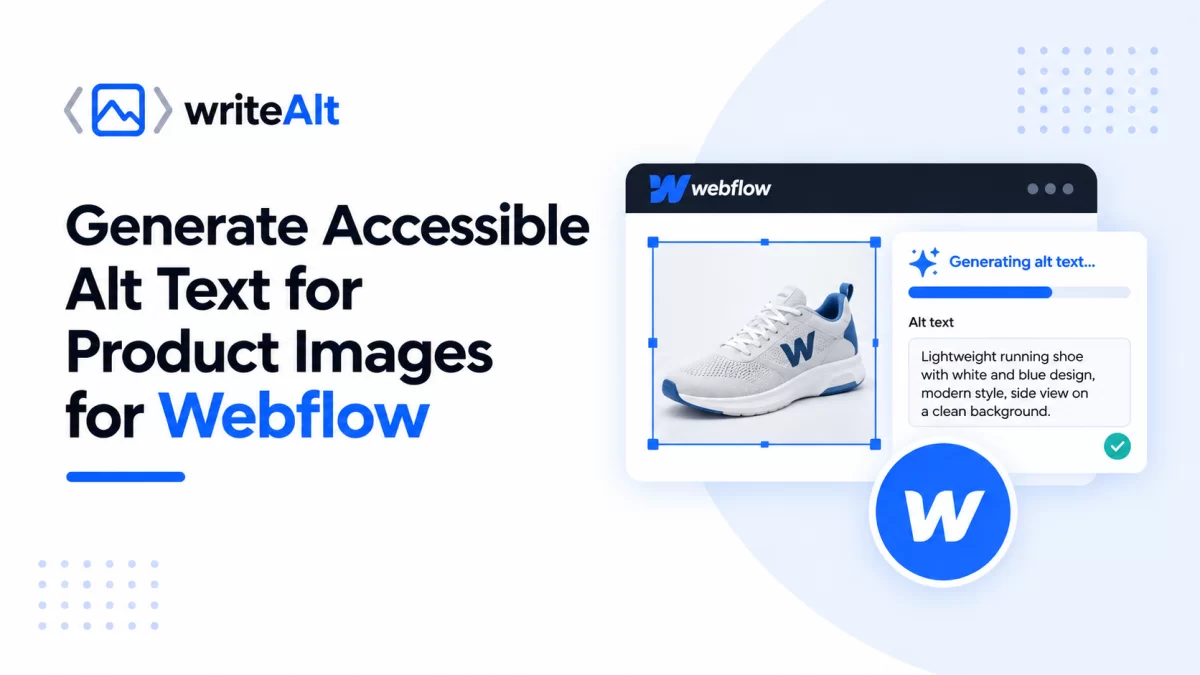
WriteAlt helps Webflow teams create clear, descriptive alt text for CMS and Designer images. It uses AI to generate image descriptions, saves them to the original Webflow image field, and can optimize selected assets without creating duplicates.
Connect WriteAlt to Webflow
Open the WriteAlt installation page.
Sign in to WriteAlt or create an account.
Open WriteAlt Dashboard > Settings > API and copy your personal API key.
Return to WriteAlt and paste the key into the API key field.
Select Connect Webflow.
Review the requested Webflow permissions and select Authorize.
After authorization, choose the Webflow site you want to manage.
Each user should use their own WriteAlt account and API key. WriteAlt does not ask for or store a Webflow password.
Choose a Site and CMS Collection
After connecting Webflow:
Select the site you want to manage.
Select a CMS collection.
Choose the Image or Multi-Image field containing the images.
Select the language and generation style.
Add optional SEO keywords.
Save the settings.
Select Refresh images.
WriteAlt then displays the available images, filenames, current alt text, file sizes, and processing status.
Generate Alt Text
You can process images individually or in bulk:
Generate alt text processes one image.
Generate selected processes selected images.
Generate all missing alt text processes only images without alt text.
Regenerate alt text replaces an existing description only when you choose it manually.
Existing alt text is not changed by the missing-alt-text action. Each generated description is displayed on the image card, allowing you to review the result.
Save Alt Text to Webflow
When generation succeeds, WriteAlt saves the description to the selected Webflow CMS image field and updates the original image reference. The image card refreshes automatically and shows the saved description and current status.
WriteAlt does not create duplicate CMS items or duplicate images when saving alt text.
Optimize Images
WriteAlt can optimize selected images by reducing file size and creating a WebP version through the secure WriteAlt backend.
When optimization succeeds:
The selected Webflow asset is replaced in place.
Existing alt text is preserved.
No duplicate CMS item is created.
No duplicate asset is created.
The image card displays the optimization result.
If the optimized version is not smaller than the original, WriteAlt keeps the original file unchanged and reports that no replacement was necessary.
Publish Your Changes
WriteAlt saves changes to Webflow, but it does not publish the site automatically.
After generating alt text or optimizing images:
Save the CMS item in Webflow.
Review the updated image metadata.
Publish the Webflow site using Webflow’s normal Publish controls.
The updated alt text becomes available on the published site after Webflow completes its publishing process.
Use WriteAlt Inside the Designer
The WriteAlt Designer Extension lets you work with a selected Webflow Image element without leaving the Designer.
Open the Webflow Designer.
Select an Image element.
Open the WriteAlt Designer Extension.
Choose a language and writing style.
Select Generate alt text or Optimize image.
Review the result shown by the extension.
Generated text is saved to the selected image and its Webflow asset. Optimization replaces the selected asset in place and keeps its existing alt text.
Disconnect WriteAlt
To disconnect the dashboard, open WriteAlt settings and select Disconnect Webflow. The saved Webflow connection is removed and WriteAlt stops making API requests for that connection.
To stop using the Designer Extension, remove or disable WriteAlt from the Webflow Workspace. Disconnecting does not delete content already saved in Webflow.
Troubleshooting
No sites appear: Reconnect Webflow and complete the OAuth authorization flow again.
No collections appear: Choose a site containing CMS collections, then refresh the site data.
No images appear: Select a collection with an Image or Multi-Image field and refresh the image list.
Generation is unavailable: Confirm that your WriteAlt API key is saved and that your account has available trial or paid credits.
An image fails: Review the error displayed on that image card and retry the individual image. Other images are not affected.
Changes are not visible publicly: Save the CMS item and publish the Webflow site.
Best Practices
Use descriptions that explain the subject and purpose of each image. Avoid keyword stuffing and repeated phrases. Review generated descriptions when images contain product details, text, people, logos, or important visual information.
Generated alt text is an assistive starting point and should be reviewed according to the image’s role in the page and the surrounding content.