









 Google Workspace Marketplace add-on
WriteAlt for Google Sheets
Turn image URLs into alt text, right in your spreadsheet. Choose your rows, click Generate, and let WriteAlt fill the matching cells.
Requires a WriteAlt account, API key, and credits. One credit per image in one language.
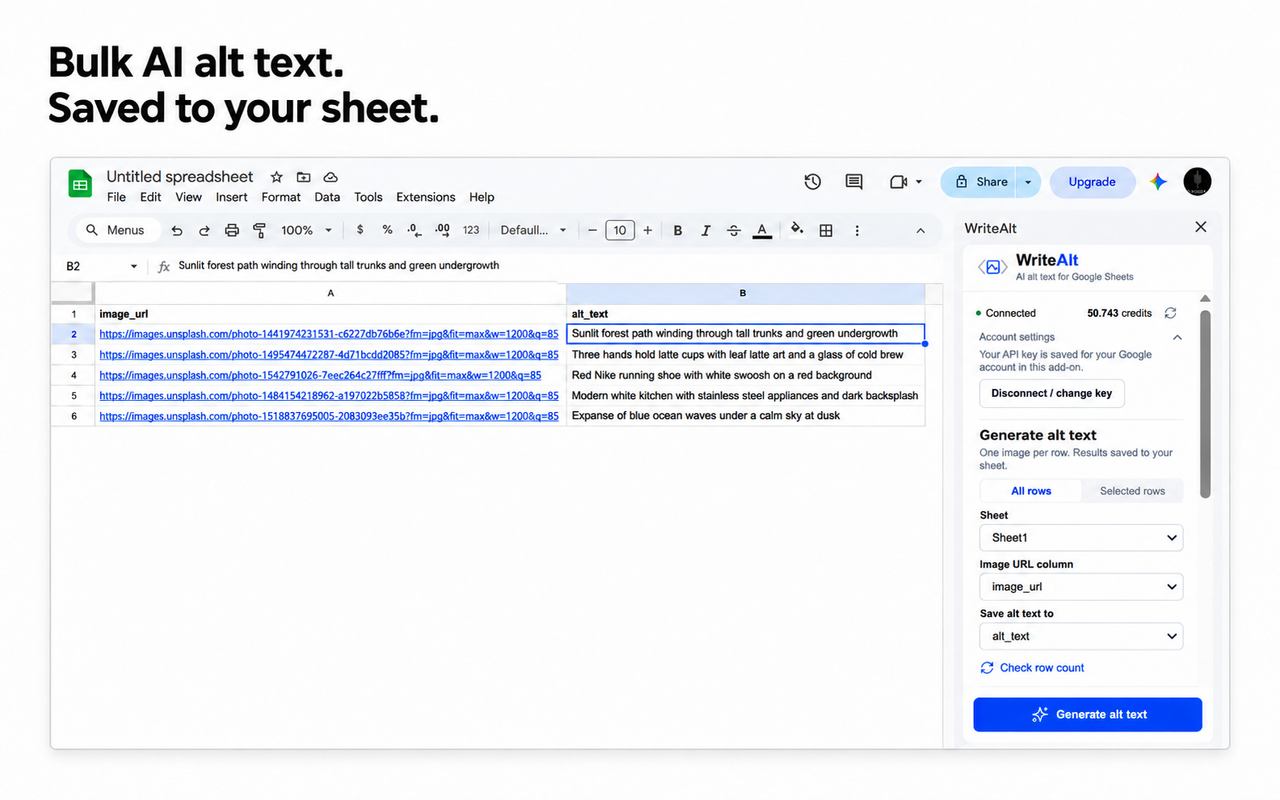
Less copy and paste. More rows done.
Keep the work in your sheet, from the first image URL to the saved alt text.
Your rows, your columns
Process all eligible rows or just your selection. Choose the image URL column and where the alt text goes.
Alt text in your style
Choose a supported language and writing style. Add optional keywords or context for your images.
Keep existing alt text
Existing descriptions are preserved by default. Turn on replacement only when you want new results.
Pause and pick up later
Pause processing and resume your saved queue. Keep the sidebar open while the add-on is working.
Follow each result
See progress, completed rows, and any rows that need attention. Alt text is saved to the matching cells.
Connect once
Save your WriteAlt API connection for future sessions, without pasting your key into spreadsheet cells.
From your first URL to a filled column
Install and connect
Install WriteAlt from the Google Workspace Marketplace. Open its sidebar in Sheets and connect your WriteAlt API key.
Choose your columns
Select all eligible rows or your selection, then choose the image URL and output columns. Set your language, style, and optional context.
Generate and save
Agree to the image transfer and start generating. Keep the sidebar open: alt text is written directly to the matching output cells.
Use publicly accessible image URLs. Selected URLs and optional context are sent to WriteAlt for external AI processing. Large batches are subject to Google Apps Script quotas and WriteAlt limits.
Import your sheet. Work in WriteAlt.
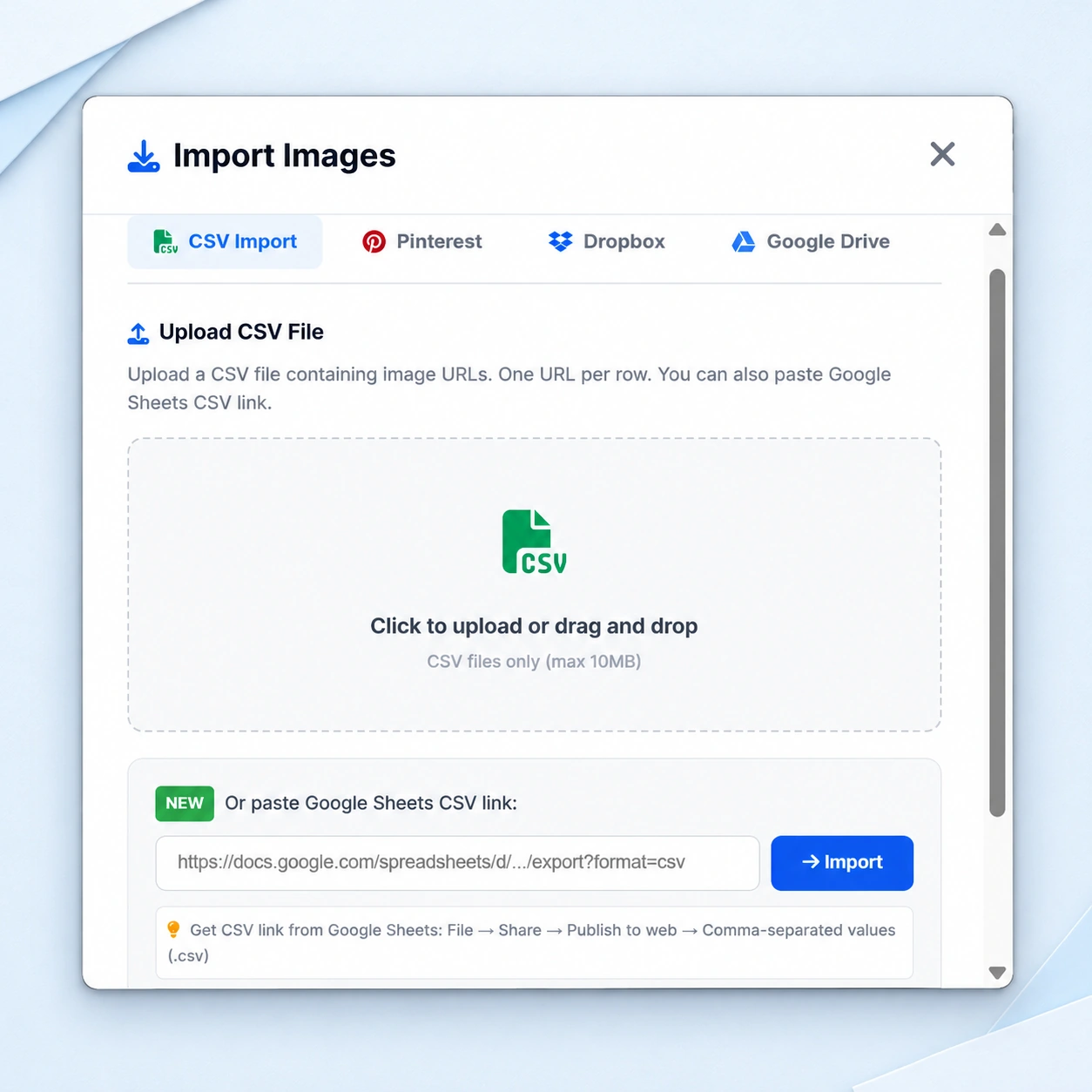
Already have a sheet of image URLs? Import its published CSV link into the WriteAlt dashboard, then generate alt text and prepare your images there.
- In Sheets, choose File > Share > Publish to web. Select the relevant sheet and the CSV format.
- In WriteAlt, open Generate > Import > CSV Import. Paste the published Google Sheets CSV link and click Import.
- Generate alt text in the dashboard, then download or export your results.
Publish only a sheet you are comfortable making public. This is a separate import workflow: it does not write results back to Google Sheets.
A few things to know
Two workflows. The same WriteAlt account.
Do I need a WriteAlt account?
Yes. Connect your WriteAlt API key and keep credits available. Generating alt text for one image in one language uses one WriteAlt credit.
Which images can the add-on process?
It processes publicly accessible image URLs in your chosen column. It does not scan images embedded in the spreadsheet.
Does the add-on update alt text on my website?
No. It writes alt text into spreadsheet cells. Use the saved text in your publishing workflow; the add-on does not automatically change website HTML ALT attributes.
Can I leave it running with the sidebar closed?
Keep the sidebar open while processing. You can pause and resume the saved queue later. Large batches are subject to Google Apps Script quotas and WriteAlt service limits.
What is sent to WriteAlt?
Your selected image URLs and any optional keywords or image context are sent to WriteAlt for external AI processing. Agree to the image transfer in the add-on before starting.
Can I import a Google Sheet into the dashboard instead?
Yes. Publish the relevant sheet as CSV, then open Generate in WriteAlt, choose Import, select CSV Import, and paste the published CSV link. Generation and exports then happen in the dashboard; this separate workflow does not write results back to your sheet.
Let your sheet fill itself.
Start with your image URLs. Leave the alt text to WriteAlt.